
Settings
The Settings option in Wizlink's main menu bar allows access to Wizlink settings.
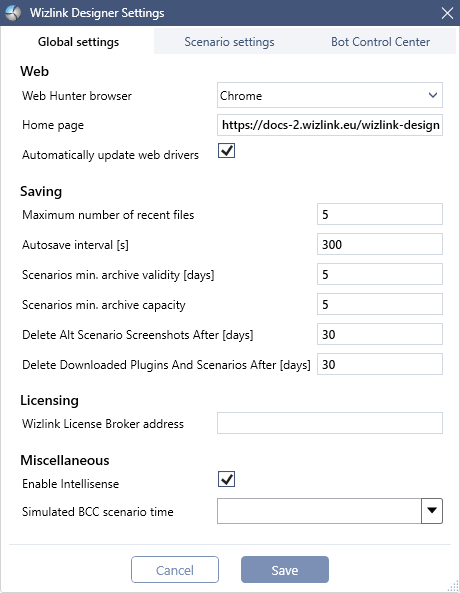
The Global Settings tab allows for changing default Wizlink Designer behaviour.
Choose browser you will use for hunting (one from a list: Chrome, Firefox, Edge, Opera), the default Web Hunter landing page and whether to allow automatic driver updates from Wizlink servers.
Choose how many files you want to be shown in File > Recent Projects in main menu bar, as well as how often to autosave projects and store the data.
Fill in the address of Wizlink License Broker if using an on-premises licensing server.
Choose whether you want to disable Intellisense and whether to simulate BCC behaviour.
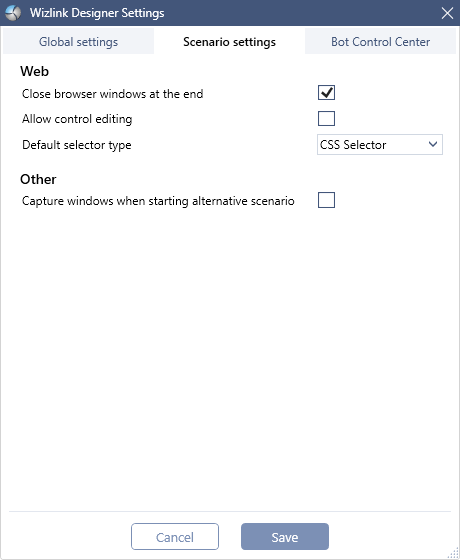
The Scenario Settings tab allows for changing behaviour of this particular scenario.
Choose whether to close browser windows once the scenario has finished running, whether to allow for (web) control editing and what the default selector type will be for captured web controls.
Choose whether you want to capture your screen when starting alternative scenario – if checked Wizlink creates a subfolder with date and time of taking screenshots in C:\Users\[user name]\AppData\Local\Wizlink2\Logs\AlternativeScenario and puts the screenshots there.
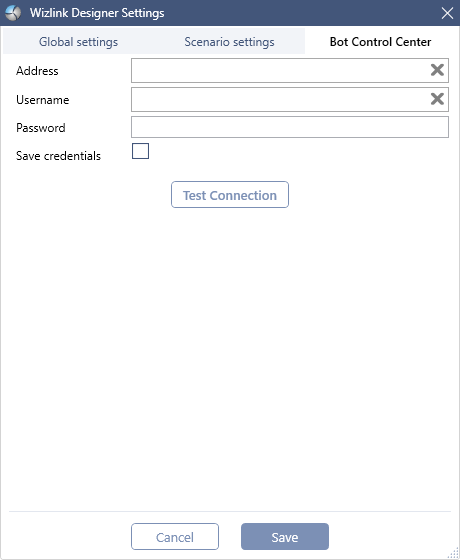
The Bot Control Center tab allows for putting in Bot Control Center credentials and testing the BCC connection.
Last edited: 2026, Feb 6